


Screen Guard - Privacy Display
3.0240.00 Reviews
App Specs
- Version
- 3.0.9
- Updated On
- License
- Free
- Downloads
- 1,000,000+
- Developer
- Tech Brain Apps
- Categories
- Personalization
- Platform
- Android
Screenshots
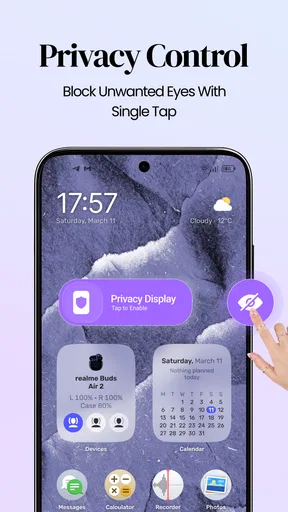
 Analysis by AppCompare
I tend to notice screen privacy most when I’m not thinking about it: checking a message on a bus, looking up an appointment in a waiting room, or opening a personal note while someone sits nearby. Screen Guard - Privacy Display is aimed at that everyday problem. It’s a personalization app from Tech Brain Apps that adds a privacy filter to the display, with the goal of making the screen less comfortable to read from an angle. I like the simplicity of that idea, though it’s important to treat a screen filter as a bit of visual discretion—not as a replacement for a lock screen or careful handling of sensitive information.
Where a screen filter earns its place
The most useful way to decide whether this kind of tool suits you is to think about where you actually use your phone. If you check personal messages while waiting for a coffee, read a private calendar note in a shared office, or glance at a notification on a crowded commute, an added visual barrier may help. It is less compelling if your phone is usually used at home or if you rarely sit close to other people while looking at it.
One practical trade-off is that privacy and readability pull in opposite directions. Before using the filter for a long message, I’d test it on a short notification and then on a page with smaller text. If you find yourself leaning closer or repeatedly changing the phone’s angle, it may be better to use the filter only for quick checks rather than extended reading. That small trial can prevent a private setting from becoming an obstacle when you need to act quickly.
What the privacy filter is good for
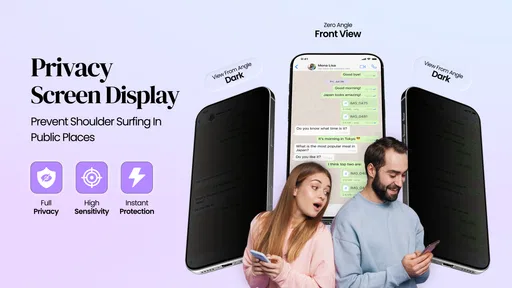
The appeal is easy to understand: a phone screen faces outward, and people nearby can sometimes read more than we intend. A display filter can make casual shoulder-surfing harder by limiting how clearly the screen appears off-center. In my view, that’s most useful for short, ordinary tasks: checking a private notification, reviewing a calendar entry, or reading a message while seated next to someone.
The key word is casual. A filter should not be treated as a guarantee that nobody can see your screen. Someone directly behind you, a bright environment, or a different viewing angle may change how effective it feels. I’d still lock the phone when putting it down and avoid displaying passwords, payment details, or confidential work where other people can see them. The app’s purpose is narrower and more practical: adding an extra visual barrier when you need to glance at your phone in shared spaces.
Unlike a physical privacy screen protector, an app-based filter doesn’t require replacing an accessory or committing to a permanent change to the display. That makes it an easier option to try if you only want extra discretion at certain times. The trade-off is that a software filter may affect the appearance of whatever is on screen, and it won’t offer the same kind of fixed, always-on physical barrier. If you need dependable privacy throughout the day, a physical protector may be the better fit.
How it fits into an everyday routine
Picture checking a message on a crowded train. With Screen Guard active, the aim is to make the display less readable to a person looking from the side, while you continue using the phone from your usual position. That can be more convenient than constantly tilting the screen toward your body, especially if you’re standing or holding a bag. I would still angle the phone inward when the content is especially personal; the filter is an aid, not permission to stop paying attention to your surroundings.
Worth Reading Before You Choose

Flipboard Shows What News Apps Must Do Beyond the Feed

Switching to Android Auto Means Rethinking Your Driving Routine

Google Calendar Makes a Crowded Week Easier to Manage

Ludo King Makes the Most of the Minutes Between Plans

Baby Panda World Brings Quick Play to Modern Phones, but Its Game Library Feels Busy

ESPN’s Live Game View Makes Following Close Games Easier
For practical use, I’d think of the filter as something to apply around a specific situation rather than a reason to keep a dim or altered display all day. Use privacy protection when you’re in a café, on public transport, or sharing a table, then consider turning it off when watching a video with someone or showing a photo. That simple habit helps balance discretion with comfortable viewing.
A less obvious use is a shared workspace where you need to glance at a personal notification without turning the whole moment into a conspicuous screen-hiding routine. I’d keep the phone positioned naturally and use the filter for that brief check, then lock the screen or return to the task at hand. This is a modest convenience, not a way to keep private content open unattended, and that distinction is what makes the app’s role realistic.
Speed, responsiveness, and busy moments
A privacy filter is meant to sit alongside normal phone use, so the experience depends on whether it remains unobtrusive while you move between apps. The useful expectation here is modest: this is a display-focused tool, not a general phone-security suite or a performance booster. I would judge it by whether the screen remains comfortable to use for routine tasks and whether activating the filter feels worth the visual trade-off.
Busy moments are where the idea matters most. You might be switching between a message and a map while walking through a station, or checking a work notification before stepping into a meeting. In those situations, the best privacy tool is one that doesn’t make you fight the phone. Still, no filter removes the need to pause and look at the screen carefully. If the display becomes harder for you to read, speed can suffer in practice: you may take longer to confirm a detail or need to adjust your viewing angle.
My practical tip is to try it first with low-stakes content—such as a home screen or a general notification—before relying on it while reading something important. That gives you a chance to see whether the effect suits your brightness, viewing position, and usual font size. If you have to strain to read your own screen, the privacy gain may not be worth the inconvenience for that particular task.
Reliability and recovery when the view feels wrong
For a tool like this, reliability is less about impressive features and more about having a predictable experience: you want to know whether the privacy effect is active and whether you can return to a normal-looking display when you need to. I’d make that check before opening sensitive material, rather than assume the filter is doing exactly what I expect. If the screen looks too dark, too altered, or simply uncomfortable, switch back to ordinary viewing before continuing.
That also gives you a sensible fallback. If you can’t comfortably read something, don’t keep adjusting your posture in public while distracted; disable the filter or move to a more private spot. The app can reduce casual visibility, but it cannot control who is close to you, what angle they have, or whether you accidentally leave the screen open. A quick screen lock remains the more reliable response when you’re interrupted.
I’d also separate privacy from security in my expectations. A visual filter changes what nearby people may be able to see; it does not, by itself, make an unlocked phone safe from someone who can handle it. For sensitive accounts and documents, use the device’s own security settings and keep an eye on where the phone is. This distinction is especially useful if you’re considering the app for work or travel.
Device fit and the viewing trade-off
Screen Guard is listed for Android devices running version 8.0 or later, so compatibility is a straightforward first check. That doesn’t mean the same filter will feel identical on every phone: display size, brightness, and your normal viewing angle all affect whether a privacy effect is comfortable. I’d test it in both a dim room and a bright public setting, because a setting that feels subtle at home may be more noticeable outdoors.
There’s also a personal comfort question. If you often share your screen to show photos, recipes, or directions, a privacy filter may get in the way at exactly the wrong time. If most of your phone use happens alone, you may not need it often enough to justify keeping an extra layer active. People who value an unchanged, clear display above all else may prefer a physical protector with a privacy effect they can accept, or simply use careful positioning and the phone’s built-in lock controls.
The app is free to install, with optional in-app purchases listed from $3.49 to $49.99 per item. I’d approach those purchases cautiously: first decide whether the basic privacy effect actually solves your problem, then consider paying only if the available paid options are useful to you. The presence of in-app purchases doesn’t make the app necessary for everyone; the value depends on how often you use a screen filter and how much its viewing trade-off bothers you.
Choosing between software, a protector, and careful habits
Compared with the usual options, this app sits between doing nothing and fitting a physical privacy protector. Careful positioning costs nothing and avoids changing the screen, but it asks you to stay aware of nearby people every time you check your phone. A physical protector provides a persistent angle restriction, which can suit someone who wants the same treatment throughout the day, although it also changes the screen whenever the phone is used. A software filter is more flexible in principle because it can be used when discretion matters, but the visual effect may be less comfortable or less dependable in a particular setting.
For an everyday trial, I’d choose a low-pressure moment rather than the first time I need to read a work message in a hurry. Check a harmless notification in a café, then look at the same screen from your normal position and from a slight angle. If the display is still comfortable for you and less clear to someone nearby, that’s a useful result. If both people have trouble reading it, or the angle makes little difference, the app may not solve your particular problem.
This also helps answer the question of whether the filter needs to stay on all the time: I wouldn’t assume that it does. A quick check in public and a longer session at home have different needs. Switching to ordinary viewing when you want to share a photo, follow a recipe with someone, or watch a video together avoids making privacy a permanent compromise. The best fit is occasional, intentional use—not treating every screen interaction as a security risk.
Who should try it—and who may prefer another approach
I can see this being useful for commuters, students, and anyone who regularly checks personal messages in shared spaces. It may also suit someone who wants to experiment with an on-demand software option before buying a privacy screen protector. The most convincing use case is occasional protection against a nearby glance, not complete concealment or a promise of confidentiality.
I’d skip it if your screen must stay crisp and easy to share, if you rarely use your phone around other people, or if you need stronger privacy than a display effect can reasonably provide. A physical privacy protector is more appropriate for someone who wants a persistent viewing-angle restriction without relying on an app. For sensitive information, positioning yourself carefully and locking the screen when interrupted remain more important than any filter.
Parents or students looking for a way to stop someone from handling an unlocked phone should also choose a different measure: a display filter addresses visibility from the side, not access to the device. Likewise, someone who needs to show a screen to a colleague repeatedly may find the extra visual layer irritating rather than helpful. I’d match the tool to the actual risk—nearby glances call for discretion, while access and account safety call for the phone’s own security controls.
Popularity, updates, and my overall take
Screen Guard is free, rated for Everyone, and has an average rating of 3.0 from around 12,000 ratings, with roughly 240 written reviews. It has passed one million installs, which suggests plenty of people have tried the basic idea, but its middling average is a reason to keep expectations measured. It was released on October 17, 2020, and its current version is 3.0.9. Those details place it as an established utility rather than a brand-new concept, but they don’t replace testing it on your own device.
From a performance perspective, I wouldn’t expect a display filter to make a phone feel faster or solve unrelated slowdowns. The sensible test is whether the effect stays out of the way during ordinary use and whether you can comfortably return to a clear view when your situation changes. I can’t judge resource demands from the app’s purpose alone, so I’d focus on what you can observe on your own device rather than assume it has no impact. If you notice disruption or the viewing compromise outweighs the privacy benefit, there is little reason to keep it active.
My verdict: Screen Guard is worth a cautious try if you want a simple, software-based way to make casual peeking less convenient. Its strength is the narrow, understandable purpose; its limitation is that privacy comes with a potential comfort cost and cannot be treated as security. I’d install it, test the effect during ordinary use, and keep it only if it helps in the places where you actually need discretion. If the screen becomes awkward to read or you need dependable all-day privacy, a physical protector—or simply stepping aside before opening sensitive content—will likely serve you better.
Pros
- Quickly dims or obscures the screen to make shoulder-surfing harder.
- Useful for checking private information in public places.
- Simple privacy tool that can be activated when needed.
- Can reduce screen visibility without changing the device display settings.
- Handy for reading messages or entering details around other people.
Cons
- A privacy overlay may make text and images harder for you to see
- too.
- It cannot prevent screenshots
- screen recording
- or access to an unlocked phone.
- Some apps may display content above the privacy layer.
- You may need to adjust the effect for comfortable viewing.
- The app may require overlay permissions to work
- which can concern some users.
FAQs for Screen Guard - Privacy Display
What does Screen Guard - Privacy Display do?
Screen Guard - Privacy Display is designed to help limit what people nearby can see on your phone screen. Depending on the version and the features available on your device, it may apply a tinted overlay, privacy filter, or screen effect. It does not physically narrow the display’s viewing angle, so it should not be treated as a replacement for a privacy screen protector.
How do I enable and adjust the privacy effect?
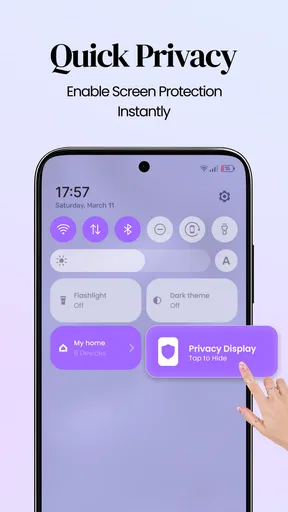
After installing the app, open it and review the controls for turning the display effect on or off and changing its appearance. You may be able to adjust settings such as tint, opacity, or coverage, though the available options can vary by app version and device. If Android requests permission to display over other apps, read the explanation and grant it only if you are comfortable.
Does Screen Guard - Privacy Display work on every phone and in every app?
Compatibility can depend on your Android version, device manufacturer, and the app’s overlay permissions. Some screens, system dialogs, video players, games, or apps using protected content may display differently or prevent an overlay from appearing. Check the store listing for current requirements, and test the effect in the apps you use before relying on it for privacy.
Can this app protect sensitive information from screenshots or screen recording?
A visual screen effect should not be assumed to block screenshots, recordings, or access by someone who can use your unlocked phone. Its purpose is to make on-screen content less comfortable to view at a glance, not to encrypt data or secure accounts. For sensitive information, use your device’s lock screen, app security settings, and trusted privacy practices.
Is Screen Guard - Privacy Display free, and what should I check before downloading?
Pricing, advertisements, in-app purchases, and permissions can change between versions, so check the current store listing before installing. Review the developer’s privacy information and requested permissions, particularly any permission that lets the app appear over other apps. Also confirm that the app is compatible with your device and that its privacy effect suits how you intend to use it.


